Overview
Installation
Users Guide
Support
Overview
haneWIN TFTP Server for Windows is a fully-realized TFTP server for all Windows Versions. The TFTP Server runs as a background service and doesn't require permanent attendance. It has been designed to work reliable and secure in background operation mode using a high-performance multithreaded architecture.
The software is implemented in 32- and 64-bit versions.
The software provides a TFTP Server (as application and as NT service)
and TFTP client based on RFCs 1350, 2347-2349 and TFTP mulicast based on RFC 2090.
All TFTP options are supported.
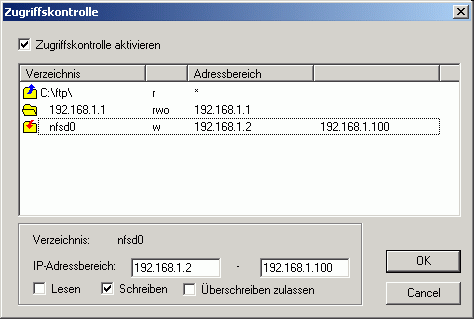
Access control is provided per directory for client IP address and type of
operation.
A native TFTP service is implemented for Windows 200x/XP/Vista/7/8/10.
A Control Panel applet gives interactive access to the service.
Installation
- Requirements
-
Windows 200x/XP/Vista/7/8/10 system configured for TCP/IP
- Installation of the TFTP service on Windows 200x/XP/Vista/7
-
- Install the software by running the setup.
- Use Install TFTP service from the start menu to install the server as service.
- With the control panel applet TFTP Server you can configure and monitor the service.
- Preparation of TFTP Server Application
- Extract the zip-archive, start the application.
Users Guide
The Info Box at startup is displayed only for the unregistered version.
The main windows of the TFTP server displays the status of all active client connections (addresses, progress and type of operation, accessed file).
Running the TFTP server as a Service on Windows 200x/XP/Vista/7
The server can be installed as a service on Windows 200x/XP/Vista/7 for background operation. The service can be configured and monitored by the Control Panel Applet TFTP Server.
- The Service is installed with the command:
TFTP4NT -install
and automatically started on Windows startup. The service can be started and stopped manually through the service control panel. - Use the command
TFTP4NT -remove
to stop and remove the TFTP server service.
- Menus
- File
- Start
- if selected the server accepts new connections.
- Stop
- if selected new connection requests to the server are inhibited. Active connections are not affected.
- View log
- displays a log of all TFTP client requests.
- Exit
- terminates the program
- Options
- Preferences
-
for changing configuration settings.
General
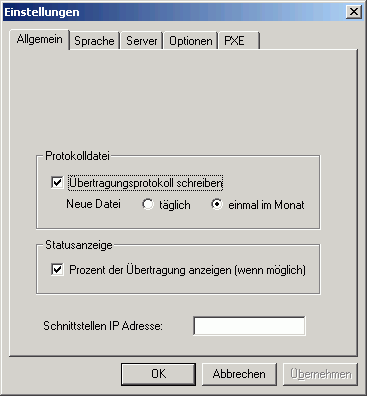
By default the Server is started on all local interfaces. You can restrict the server to one interface only by specifying the local interface IP address.Server
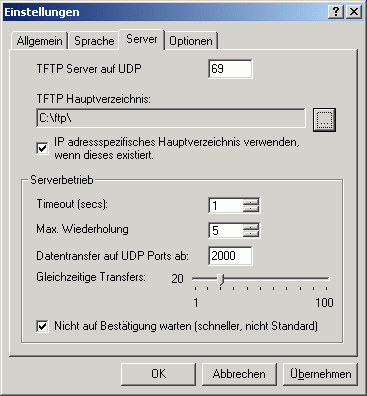
A server root directory must be defined. Any client access outside of the root directory tree is denied. An option enables the server to use a subdirectory of the root directory as a client specific root directory. If this option is enabled and a subdirectory with the IP address of the client exsists, it will be used as the root directory for the client.
The sever allows indicating the range of UDP ports, used for transmitting the data. This allows network administrators to regulate firewall rules, approving the traffic, generated by the server. The UDP port range is defined by specifying the first UDP data port and the number of active clients.Options
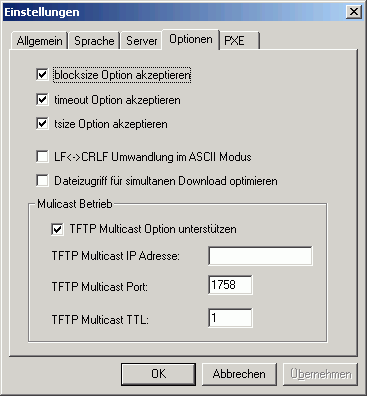
As part of a request TFTP clients can send options to the server. The server can accept or reject the options.- The blocksize option allows the client to choose a data packet size greater than 512 bytes.
- The timeout option allows the client to choose the timeout value for retransmissions. Otherwise the timeout value set on the server will be used.
- With the tsize option the client can inform the server about the total size of the transfered data.
With TFTP Multicast clients can download a file simultanously. The file is sent by the server to the specified multicast address and port. If more than one multicast transfer is started the multicast port number is incremented.PXE
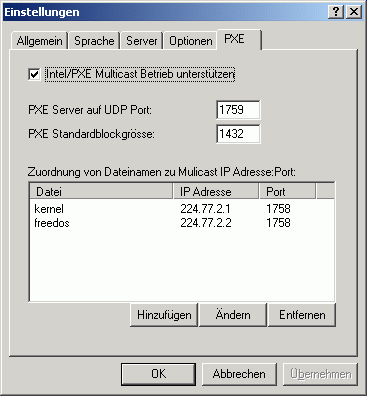
The Intel/PXE specification uses a different protocol for multicast operation. Multicast configuration parameters are sent to clients using DHCP options.- Multicast requests are directed from a client to an extra server port.
- The default blocksize is 1432 bytes.
- Each file downloaded using multicast operation is send to an unique multicast IP address and port.
- Access control
-
Virus Ti Rom Bin May 2026
Note: I assume you mean the plant virus commonly called “Tomato ringspot virus” (often abbreviated ToRSV) or a similarly named pathogen; however, the exact phrase "virus ti rom bin" is ambiguous. I will present a practical monograph treating this as Tomato ringspot virus (ToRSV). If you meant a different virus, tell me the exact name and I will revise.
Let’s simulate how a hypothetical "Ti.Rom.Bin" virus might operate to help you identify if you are infected.
| Issue | Likely Cause | Solution | |-------|--------------|----------| | “Invalid file” | Wrong file type/corrupt | Redownload official file | | Update fails at 50% | USB cable or power issue | Use direct port, high-quality cable | | No sound after flash | ROM mismatch | Reflash correct firmware + factory banks | | Synth won’t boot | Bricked due to bad binary | Contact Access support (recovery possible via JTAG/service) |
Even if “virus ti rom bin” isn’t real, you might still be infected with something. Follow this action plan if you see any unusual file names, processes, or pop-ups.
An interesting article titled Virus TI Hardware Firmware provides a detailed technical look into the contents of the Access Virus TI
.binfiles. The investigation reveals several key insights:Embedded Strings & Patches: The firmware
.binfiles contain recognizable strings and 512-byte patches, confirming that much of the synth's character is stored directly within these files. virus ti rom binLOD Files: The author identifies
.lodfiles within the firmware, which are suspected to represent either control code or wavedata, though standard tools like the Interactive Disassembler (IDA) struggle to parse them.Emulation Foundation: This deep-dive into the ROM structure is the same technical groundwork that allowed developers like the DSP56300 Team to create the OsTIrus emulator, which runs the actual Virus TI firmware code on modern computers. Related Technical Resources For those interested in the ROM and firmware architecture:
Burning to ROM: A guide on JonDent's blog explains how the Virus TI memory is structured into 26 ROM banks and how users can "burn" custom sounds into these permanent slots.
Extracting Firmware: Community discussions on Gearspace and Reddit detail how to legally obtain the
firmware.binfile by installing the official Access software and locating the file in the installation directory.If you're looking to run the emulator yourself or want to reverse engineer specific parts of the sound engine, let me know so I can provide the right technical steps. Note: I assume you mean the plant virus
DSP56300 Emulator Updates - Virus Ti - Waldorf XT - Virus A/B/C
The Virus TI ROM BIN refers to the binary firmware file (
firmware.bin) required to run emulated versions of the legendary Access Virus TI synthesizer on modern computers. While the hardware itself is largely discontinued, projects like OsTIrus allow users to run the exact original code by emulating the Motorola DSP 56300 chips that powered the physical units. What is the Virus TI ROM BIN?The "ROM BIN" is essentially the digital "brain" of the Access Virus TI. It contains the operating system, sound-generating algorithms, and factory presets. Emulators like OsTIrus do not recreate the sound through standard software synthesis; instead, they act as a virtual host for this specific binary file, resulting in a bit-perfect reproduction of the hardware's sound. How to Obtain the ROM BIN
Because of legal and copyright reasons, emulator developers typically cannot distribute the ROM file directly. However, users can legally extract it from official Access Virus installers:
To obtain the Access Virus TI ROM (firmware.bin) —typically for use with emulators like Removal:
—you must extract it from the official software suite. Since this file is copyrighted, it is not legally available for direct download; you must be a registered owner or have access to the official installer from Virus.info Step-by-Step Extraction Guide For Windows Users
The simplest method involves installing the software or manually unpacking the installer files. Download the Installer : Log in to Virus.info and download the Virus TI Software Suite (e.g., version 5.1.7.00 for Windows 64-bit). Locate via Installation Run the installer and complete the setup. Navigate to: C:\Program Files\Access Music\Virus TI\Common Copy the file named firmware.bin to your emulator's directory. Manual Extraction (Without Installing) Use a tool like 7-Zip to "Open Inside" the installer. Locate and extract the internal Look for a file named something like firmware_bin and rename it to firmware.bin Cakewalk Discuss For macOS Users Extracting the
file requires using terminal commands to expand the package. Download and Rename : Download the macOS installer and rename it to for easier terminal use. Expand the Package : Open Terminal and run: pkgutil --expand-full virus.pkg virus_pkg Extract the Binary Navigate to the expanded folder:
virus_pkg/Core_components.pkg/Payload/Library/Application Support/Access Music/Virus TI/Common firmware.bin to your desired location. Troubleshooting & Tips
Prevention:
Removal:
- Help
- Contents
- starts a HTML browser displaying the manual.
- Register
- prompts for the license key and your name, company. Check the Info menu to find out if the license information was accepted.
- Show License
- displays the conditions for using this software.
- About...
- displays program version information.
Using the TFTP Client
TFTP.EXE is a Win32 command line TFTP client.The implementation of the client as a command line program allows easy use of the client for automated tftp data transfer from application or procedures.
Usage: tftp [Options] server GET|PUT file [local]
- server: IP address or name of the TFTP server
- file: Name of file to transfer
- local: Local name of file
- Options:
- -a mode ASCII, default OCTET
- -b<blocksize> block size in bytes, default 512
- -d write debug messages
- -l show transfer activity
- -o override if local file exists
- -p pipe: send data from stdin/receive data to stdout
- -r<retries> number of retries on timeout
- -s disable transfer size option, default enabled
- -t<timeout> retransmission timeout in seconds, default 1s